PRINT ADDRESS CONTROLS
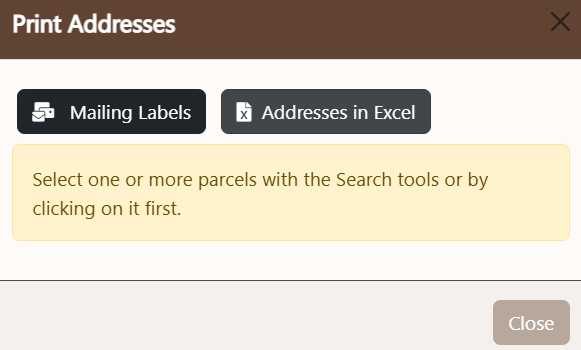
Print Controls are used to send the current list of selected parcels to either an Excel file of printable sheet of labels. To use the Print Address Control, ensure at least one parcel has been selected:
- Mailing Labels: pressing this button will generate a label set for the selected parcels using
Avery 5160 format. Output is exported via PDF.
- Addresses in Excel: pressing this button will export the selected parcels to an Excel file.
- Selection: one or more parcels must be selected, or the tool will not proceed.
Use specific browser controls to direct the downloaded PDF to download and load, or simply download:
Adobe Acrobat/Reader (Desktop):
- Open Acrobat/Reader.
- Press Ctrl + K (or go to Menu > Preferences).
- Select the General tab.
- Uncheck Open PDFs automatically in Reader when they are downloaded in Chrome browser.
- Uncheck Always open PDFs downloaded from the web if it exists.
- Click OK.
Google Chrome Browser:
- Click the three dots (...) in the top right, then Settings.
- Go to Privacy and security > Site Settings.
- Click Additional content settings > PDF documents.
- Select Download PDFs instead of opening them.
Microsoft Edge Browser:
- Go to Settings > Cookies and site permissions.
- Scroll down to find PDF documents and enable the option to Always download PDF files.